
With XPFlightPlanner, you have the flexibility to use the standard navigation data provided by X-Plane or custom navigation data with XPNavData for updated AIRAC or from Navigraph.
Use X-Plane database
To use XPFlightPlanner, you’ll need access to X-Plane’s world navigation database. You have two options for the database source:
- Either download the navigation database from the internet
- Or import the navigation database from your local X-Plane installation
Upon first launch, the “Navigation database” dialog will appear, allowing you to choose between the two options. You can also access this dialog at any time by selecting “Select navigation database” from the “Edit” menu.
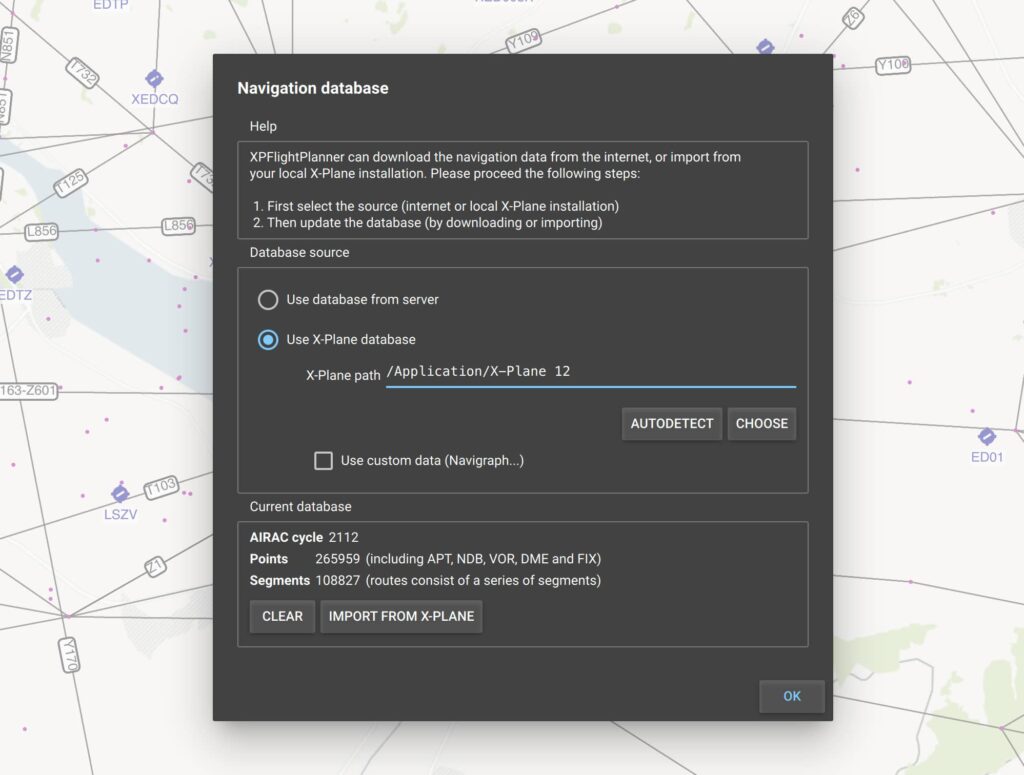
Download database from server
If you choose to download the database from the internet, select the “Use database from server” option and click the “Download” button. The download process can take up to a minute, depending on your network speed and the server’s conditions.
Once the database has been successfully downloaded, it will be stored on your computer in an optimized binary format. XPFlightPlanner will use this same database each time it is started, unless you update and download a new version.
Load database from X-Plane
Alternatively, you can choose to import the database from your X-Plane installation by selecting “Use X-Plane database” and then clicking “Import from X-Plane.” This process may take up to 1 or 2 minutes, depending on the speed of your computer. After complete, the binary optimized database will be loaded every time you start XPFlightPlanner.
In order to ensure that XPFlightPlanner is using the most up-to-date navigation database, you’ll need to either download or import the database again whenever the X-Plane data cycle is updated.
Use an updated database
XPFlightPlanner can use a custom navigation database installed in X-Plane’s Custom Data directory. This allows XPFlightPlanner, X-Plane, and compatible aircraft systems to use the same AIRAC cycle.
XPNavData
XPNavData provides updated AIRAC cycles for X-Plane 11 and X-Plane 12 without a subscription. You can purchase and install a new cycle only when you need one.
After installing XPNavData in the <X-Plane>/Custom Data directory, open the Navigation database dialog in XPFlightPlanner and select Use custom data. Then click Import from X-Plane.
XPFlightPlanner will import the navigation data and convert it into its optimized internal format.
Navigraph
Users with a Navigraph subscription can follow the same procedure to import the AIRAC cycle installed by Navigraph in X-Plane’s Custom Data directory.
Required Files
The <X-Plane>/Custom Data directory must contain:
earth_awy.datearth_fix.datearth_nav.dat- The
CIFPdirectory
You must import the database again in XPFlightPlanner whenever you install a new AIRAC cycle.